How to keep a Mac from sleeping: every way on macOS compared
There are three ways to keep a Mac awake. They differ less in whether they work than in how long they last — and whether you have to remember them afterwards.
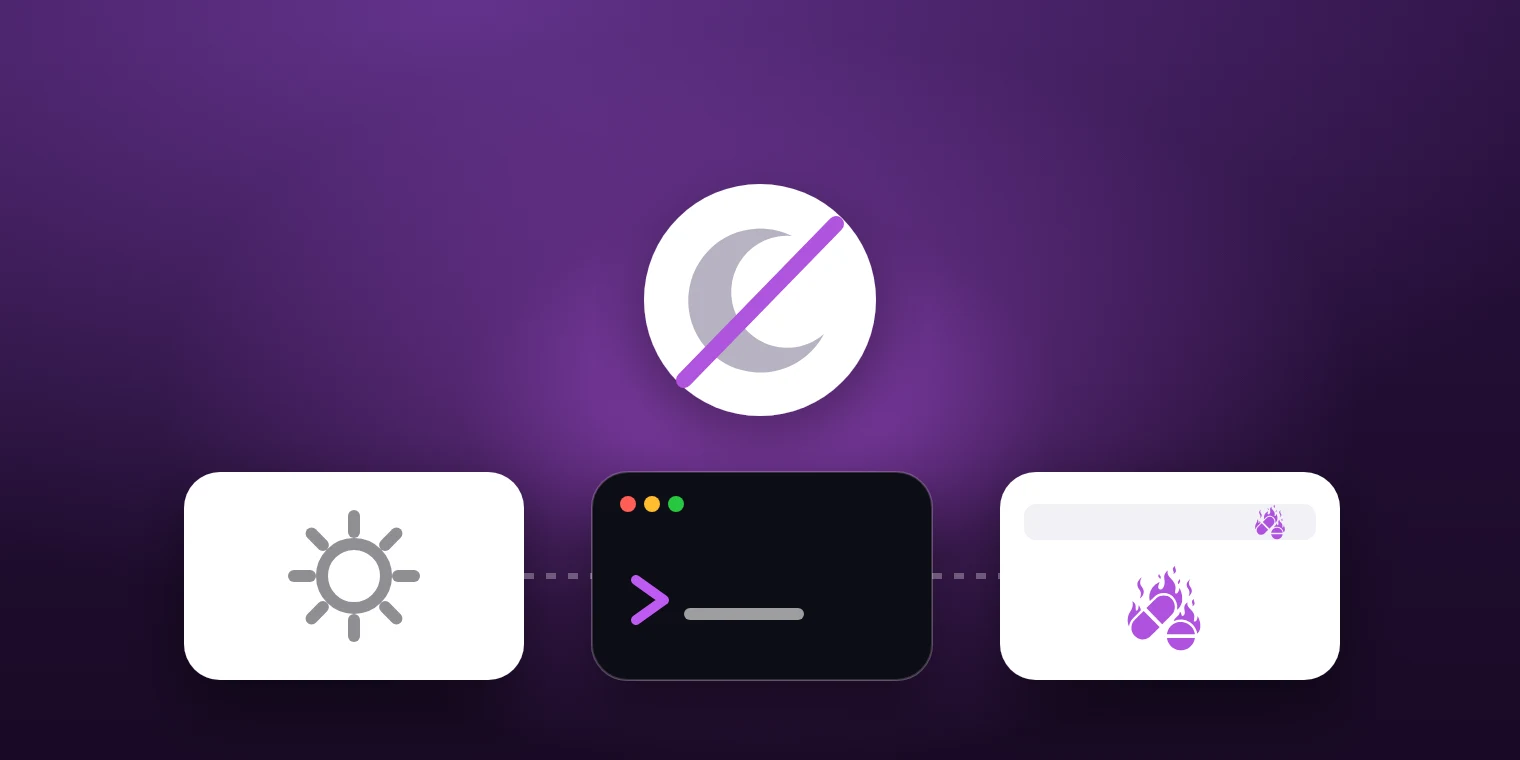
Why a Mac falls asleep at all
macOS puts the computer to sleep when no input arrives for a while. It counts the time since the last key press or mouse movement, not the work that is currently running.
That is why a Mac falls asleep halfway through a download, a backup or a build. Programs can prevent it by taking out a so-called assertion. Many do; you cannot rely on it.
Way 1: System Settings
In System Settings you can extend the time before the display turns off or set it to “Never”, and on power you can turn off automatic sleep.
That works reliably, but permanently. Change it for one evening and you have to change it back, or the Mac also runs through the nights when there is nothing to do.
Way 2: caffeinate in Terminal
macOS ships its own tool for this, caffeinate. It keeps the Mac awake for as long as it runs, or for a given number of seconds.
It is precise and free, but it needs an open Terminal window and the right flags. If you rarely use it, you look them up from scratch every time.
Way 3: a menu bar app
An app like Toxin takes out the same kind of assertion as caffeinate, with one click: indefinitely or for a span from five minutes to twenty-four hours. Afterwards, whatever System Settings say applies again.
One special case remains: the closed lid. Closing the lid is a separate rule in macOS that no assertion stops; that takes lid mode.
Which way for what
- Permanently, for example a Mac acting as a server: System Settings.
- Once, from inside a script: caffeinate.
- For a task with a foreseeable length: a span from the menu bar.
- With the lid closed: lid mode, not just a session.
Common questions
Does it harm the Mac if it never sleeps?
No. It uses more power and runs warmer than it would asleep, nothing more. On battery it costs runtime, which is why a span beats “indefinitely”.
Do I have to change my energy settings to use Toxin?
No. A session changes no setting. Toxin keeps the Mac awake for the span you chose and then lets it go again.
Which way fits depends on how long the Mac needs to stay awake. Toxin covers the most common case: a span you choose, and nothing to remember afterwards — a menu bar app for macOS, not on the Mac App Store yet.